The Task "Start Showcase"
The task "Start Showcase" allows you to start a Showcase at a given point in time with the option to repeat itself and if desired execute a proceeding task.
Create a Task
How to create a task "Start Showcase"
-
In the left navigation
Scheduleshighlight the desired schedule which you would like to add this task to. -
Click on
Add > Task > Start Showcase. A dialog window opens.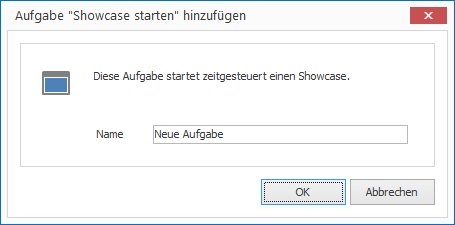
-
Enter a meaningful name for your new task and confirm by clicking
OK. The task will then appear in the list of tasks. -
Configure the desired parameters in the Properties Editor on the right panel.
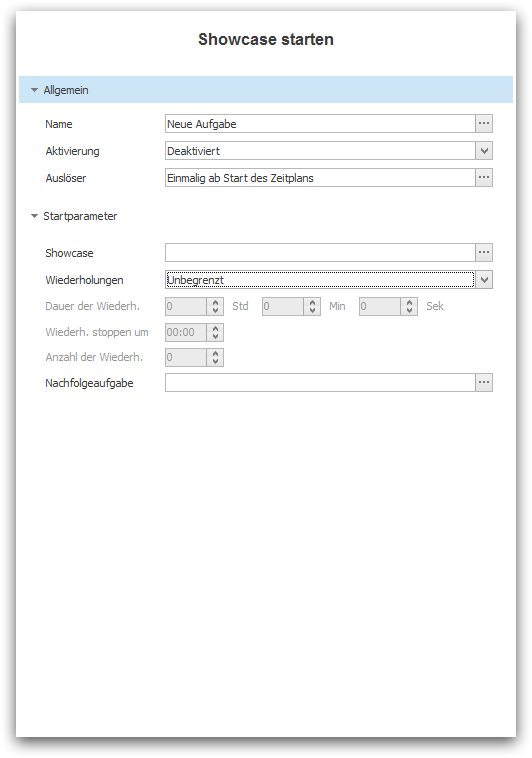
- Under
Activationyou can activate the task for future launches. By default, new tasks are deactivated.
- Under
-
Under
Triggeryou can define the point in time when this task shall be launched. For more information see chapter Trigger Tasks.- In the group
Start Parameteryou define exactly what should happen when starting the Showcase.
- In the group
Start Parameters
You have the following options to start a Showcase:
-
You must select the Showcase under
Showcasewhich you would like to start. -
Under
Repeatspecify whether the Showcase- should be triggered just once (Option:
None) - should be triggered infinitely (Option:
Unlimited) - should be triggered for a limited duration (Options:
Limited DurationandLimited Duration (Fixed time)) - should limit the quantity of repeats (Options:
Limited Quantity)
- should be triggered just once (Option:
-
The following input masks depend on the selected mode of repeatitions and allow its configuration.
-
Under
Next Taskyou define what task should be launched upon editing the Showcase.